Inventory Controller
Inventory Controller keeps a live count of what is on the shelf, checks it against a reorder point you set once, and handles the buying: suppliers, purchase orders, receiving and the supplier’s invoice. This guide walks through each screen.
Where everything is
Inventory has three tabs: Stock, Purchase orders and Suppliers. Purchase orders and Suppliers show for Owners, Admins, Managers and Stock controllers, who can buy, and for Bookkeepers and Auditors, who can look but not change anything.
| On the Stock tab | What’s there |
|---|---|
| Count | Start stock take, Count with scanner, Assign counts, Assignments, Differences to approve, Past stock takes. |
| More | Stock alerts, Low stock & reorder, Stock ledger, Stock value & dead stock, Stock value on a date, Write-offs, Adjust stock, Locations, Restock locations, Import items, Stock settings and SKU numbering. |
| Needs you | A strip across the top when something needs doing, such as a late delivery or differences waiting for approval. |
| Filters | Needs reordering, Running low soon, Low stock, Out of stock and In stock; stock that hasn’t moved in 30 days, 90 days or 6 months; and by category. |
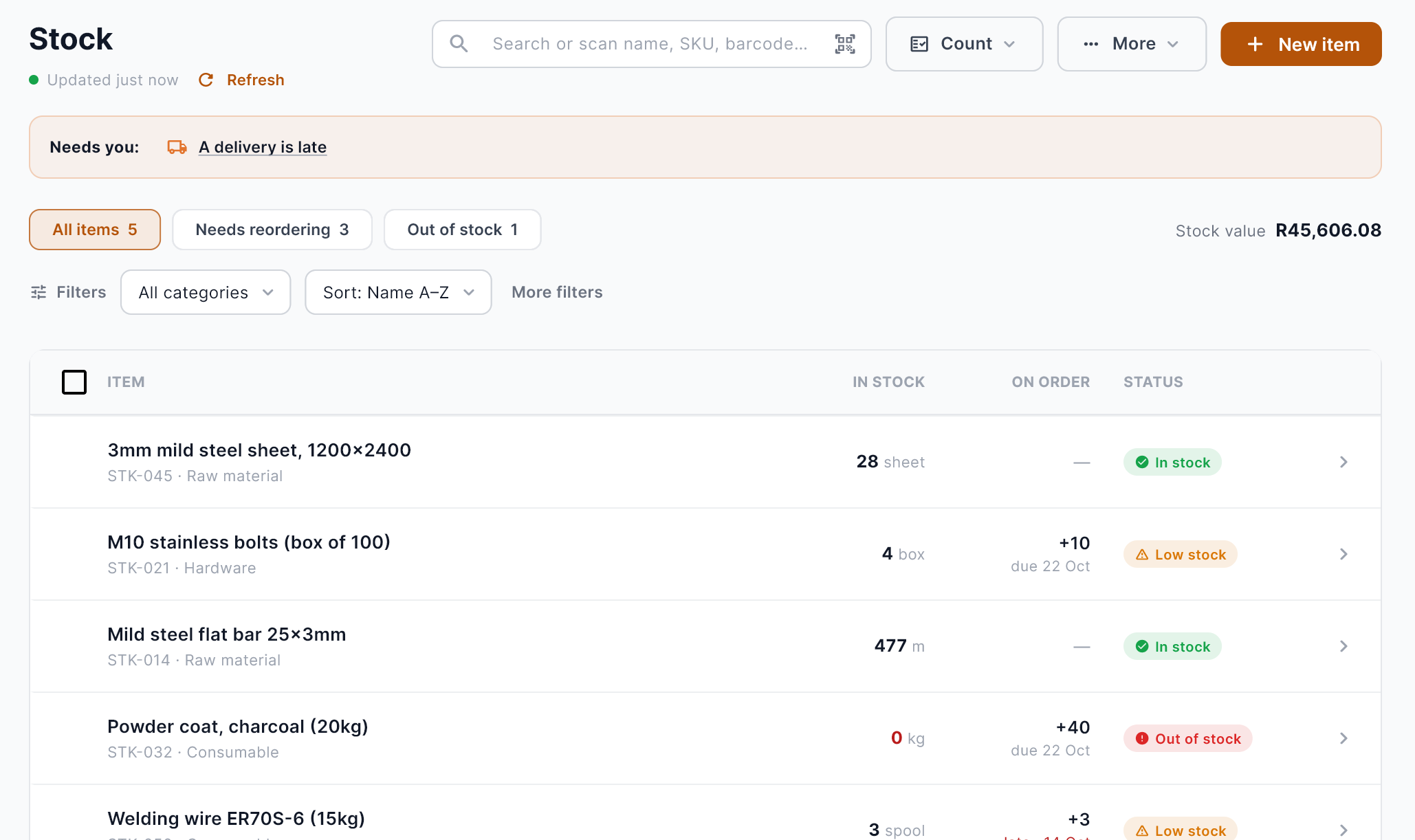
What an inventory item holds
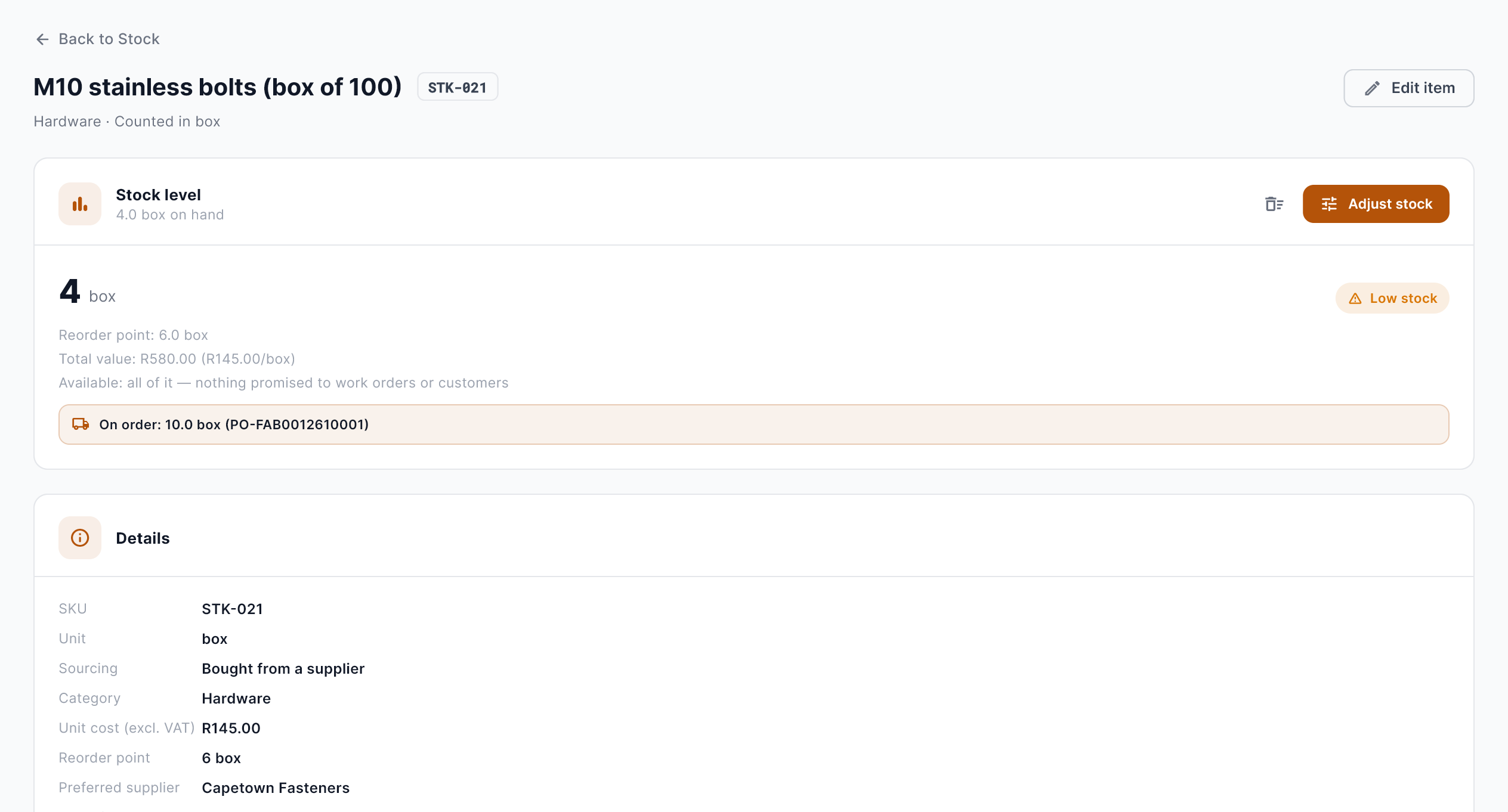
| Field | What it holds |
|---|---|
| Name and SKU | What your team calls it, and a short code for it. Turn on SKU numbering to have codes made for you, such as STK-021. |
| Category | Raw material, hardware, consumables, or your own grouping. |
| Unit | What you count it in: metres, sheets, boxes, kilograms. |
| Bought in | When a supplier sells it in a different unit, for example by the sheet while you count in m², and how many of your unit are in one. |
| On hand and available | The count, and what’s left of it once open work orders and holds have taken their share. |
| Reorder point | At or below this, the item counts as low. |
| Order up to, minimum order | How much a reorder brings it back up to, and the least you can order at once. |
| Unit cost | What one costs you on average. It follows what you actually pay on purchase orders. |
| Preferred supplier and lead time | Who you normally buy it from, and how many days they take. |
| Sell price | Optional, before VAT, for when you sell it as it is. |
| Bought in, made, or a kit | Bought from a supplier; made in-house from other items (with a bill of materials); or a kit, a set of other items that holds no stock of its own. |
| Tracking | None, by batch (with expiry dates), or by serial number. |
| Barcode and photo | For scanning, and so people pick the right one of two look-alike parts. |
| History and Used in | Every movement of this item, and the customer orders that use it. |
Add items
Already have a list? More › Import items (Excel / CSV) brings it in at once, and the list exports to CSV whenever you need it.
Items you make, and kits
For an item you make, list what it’s made from under Bill of materials. Build then takes those components off the shelf and adds the finished item, and work orders can plan it. A kit lists what’s in it; selling or issuing one takes its items off the shelf.
In stock, low and out
| Level | Rule | What to do |
|---|---|---|
| In stock | Above the reorder point. | Nothing. |
| Low stock | At or below the reorder point. | Order now, before a job is waiting on it. |
| Out of stock | Nothing left. | Flagged so it can’t be missed. |
Levels are worked out from what’s available: on hand, less what open work orders have set aside. The level follows the count; you never set it by hand.
Running low soon catches items that are fine today but, at the rate you use them, will be low before a new order could arrive.
Choosing a reorder point
A good reorder point is roughly what you use while you wait for a delivery, plus a small cushion. If a supplier takes a week and you use five boxes a week, a point of six leaves room for one bad week. If you have no idea, start with a guess and adjust after a month. Once there’s some history, the item shows how fast it’s used.
Stock alerts
Fabristack emails your stock team when something needs attention. It checks every 30 minutes on its own, and sends one email listing whatever has come up since the last one. Nothing is sent when nothing has.
- Items that drop to their reorder point or run out.
- Batches about to expire (you choose how many days ahead), or past their expiry date.
- Purchase orders past their expected delivery date.
The same alerts are listed in the app under More › Stock alerts. The email goes to the company’s Owners, Admins, Managers and Stock controllers. Turn it off in More › Stock settings.
The low stock report
More › Low stock & reorder lists everything to reorder now or soon, ready to turn into purchase orders.
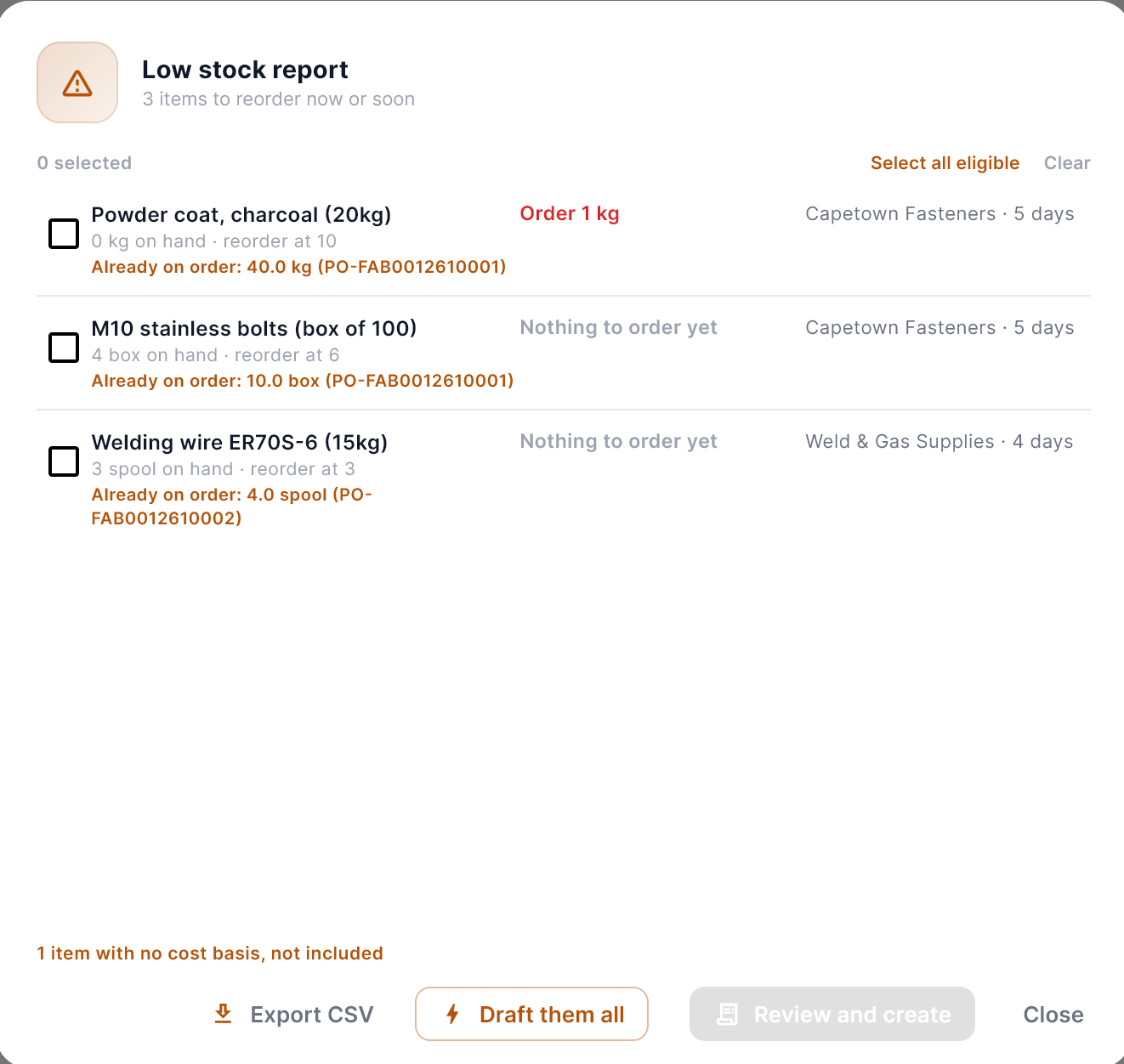
- Each item shows what’s on hand, its reorder point, a suggested quantity to order and its preferred supplier with their lead time.
- Anything already on a purchase order says so, with the order’s number, and is left unticked, so nobody orders it twice.
- Draft them all makes one draft purchase order per supplier straight away. Review and create lets you check the ticked items first.
- Items with no preferred supplier, or no cost yet, can’t be drafted until you add one.
- Export CSV for a copy of the list.
On the Purchase orders tab, Order by item does the same for anything you pick: add the items you need, and each goes to its preferred supplier (or one you choose), with one draft order per supplier.
Purchase orders
The Purchase orders tab lists every order to every supplier, with its status, expected date and value. Late orders show in red with how many days late they are, and the total on order is at the top.
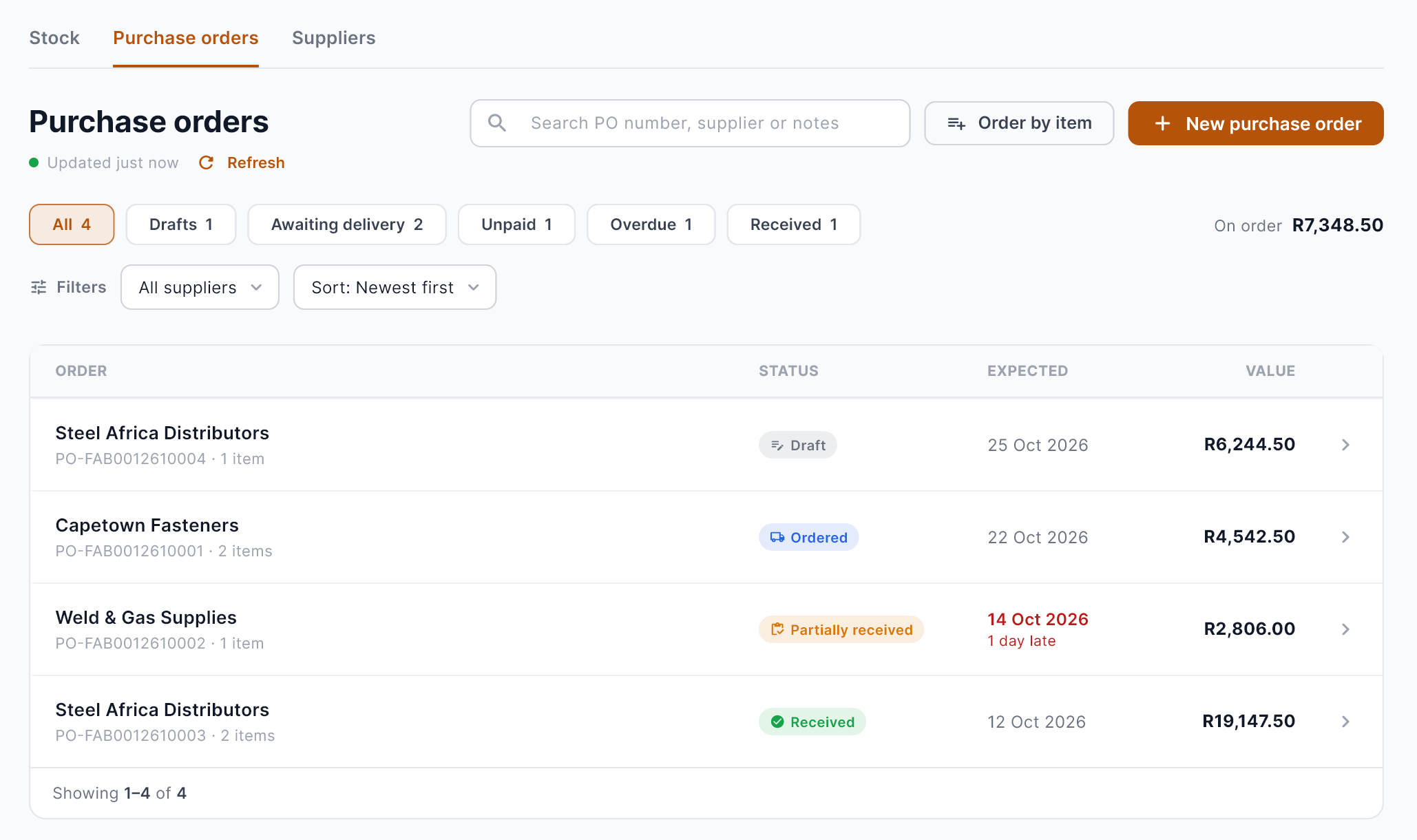
Use the filters across the top: Drafts, Awaiting delivery, Unpaid, Overdue and Received, or search by PO number, supplier or notes. Each order gets its own number, such as PO-FAB0012610001.
| Status | What it means |
|---|---|
| Draft | Being put together. It can still be changed or deleted. |
| Draft, waiting for approval | A draft over your approval limit, waiting for an Owner, Admin or Manager. |
| Ordered | Placed with the supplier. |
| Partially received | Some of it has arrived. |
| Received | Everything has arrived. |
| Closed short | Part of it arrived, and the rest isn’t coming. |
| Cancelled | Not going ahead. |
Raise and place an order
Set the approval limit in More › Stock settings › Approve orders over. Leave it empty and every order can be placed straight away.
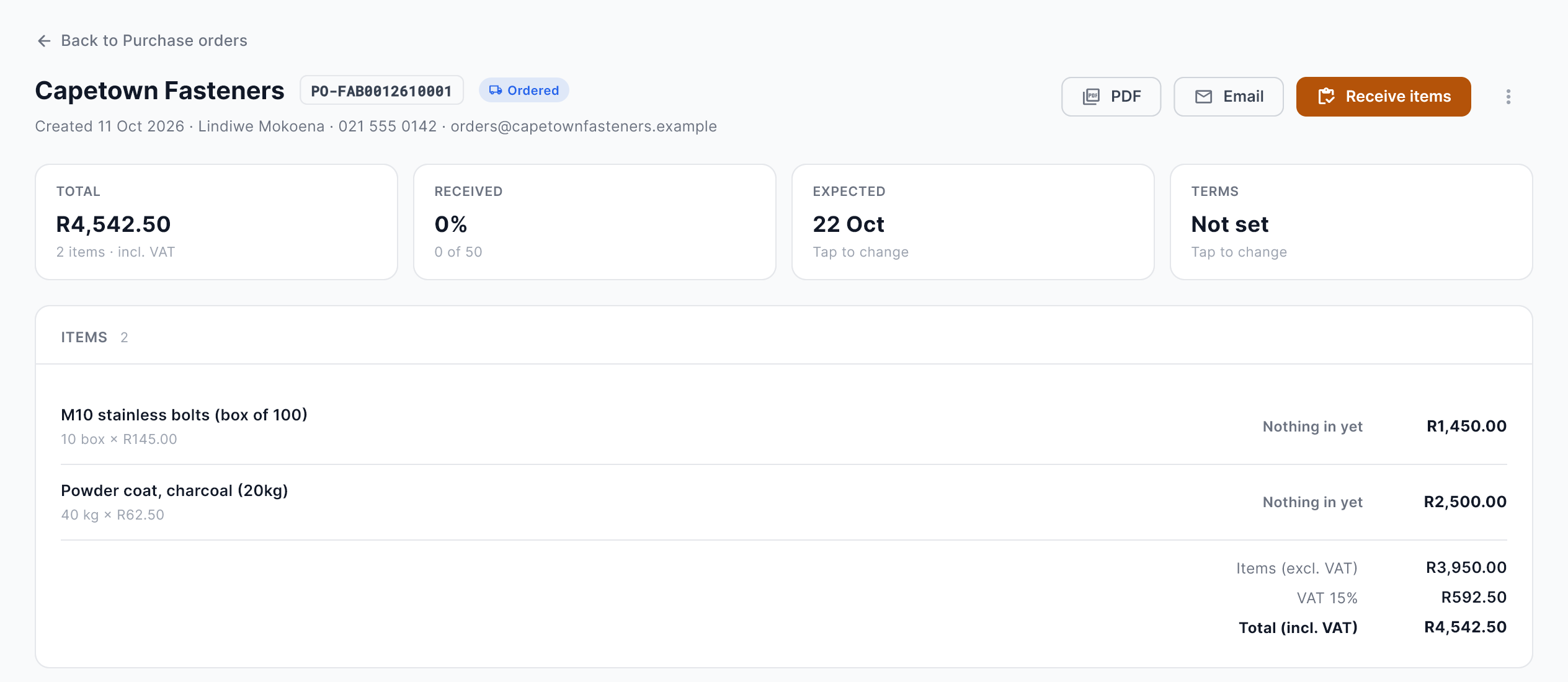
When it’s late
Late orders show on the list, on the Stock tab’s Needs you strip and in the stock alert email. Chase the supplier emails them from Fabristack, asking when it will arrive and listing what’s still to come; their reply comes to you, and you get a copy. If they give a new date, Change expected date.
Receive stock
When the rest isn’t coming
Close short ends a part-received order. What has come in stays in stock; the rest stops counting as on order.
Sending stock back
Something wrong with a delivery? Send back to supplier from the order, for a replacement or a credit. It comes off your stock, and is kept on the order.
The supplier’s invoice
When the supplier’s invoice arrives, choose Add invoice on the purchase order and enter its number, date and total, any delivery charge, and what each item was invoiced at.
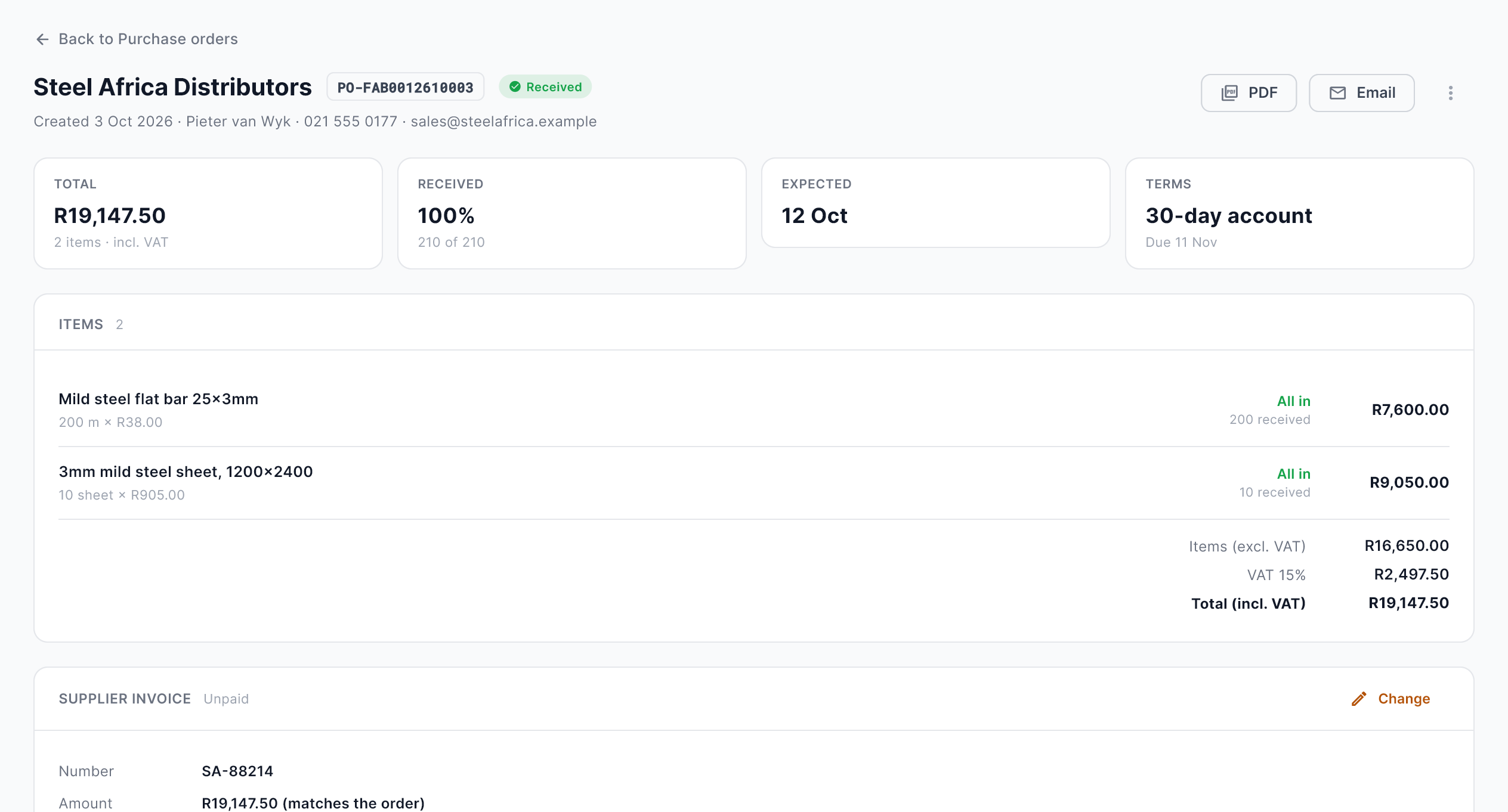
- Fabristack checks the invoice against the order, and says whether it matches the items, delivery and VAT.
- A price that changed becomes the order’s price, and the stock already received is revalued to it. When it differs from the supplier’s price list, Fabristack asks whether to update the list too.
- The payment due date comes from the supplier’s payment terms, unless you enter one.
- Mark paid when you’ve paid it. The Unpaid filter shows every invoice still to pay.
| Payment terms | When the invoice is due |
|---|---|
| COD | On delivery. |
| Pay before delivery | Up front, on a pro forma invoice. |
| Account, days from invoice | A number of days after the invoice date, such as a 30-day account. |
| Account, days from statement | A number of days after the month’s statement. |
Terms are set on the supplier, and can be changed for a single order.
Suppliers
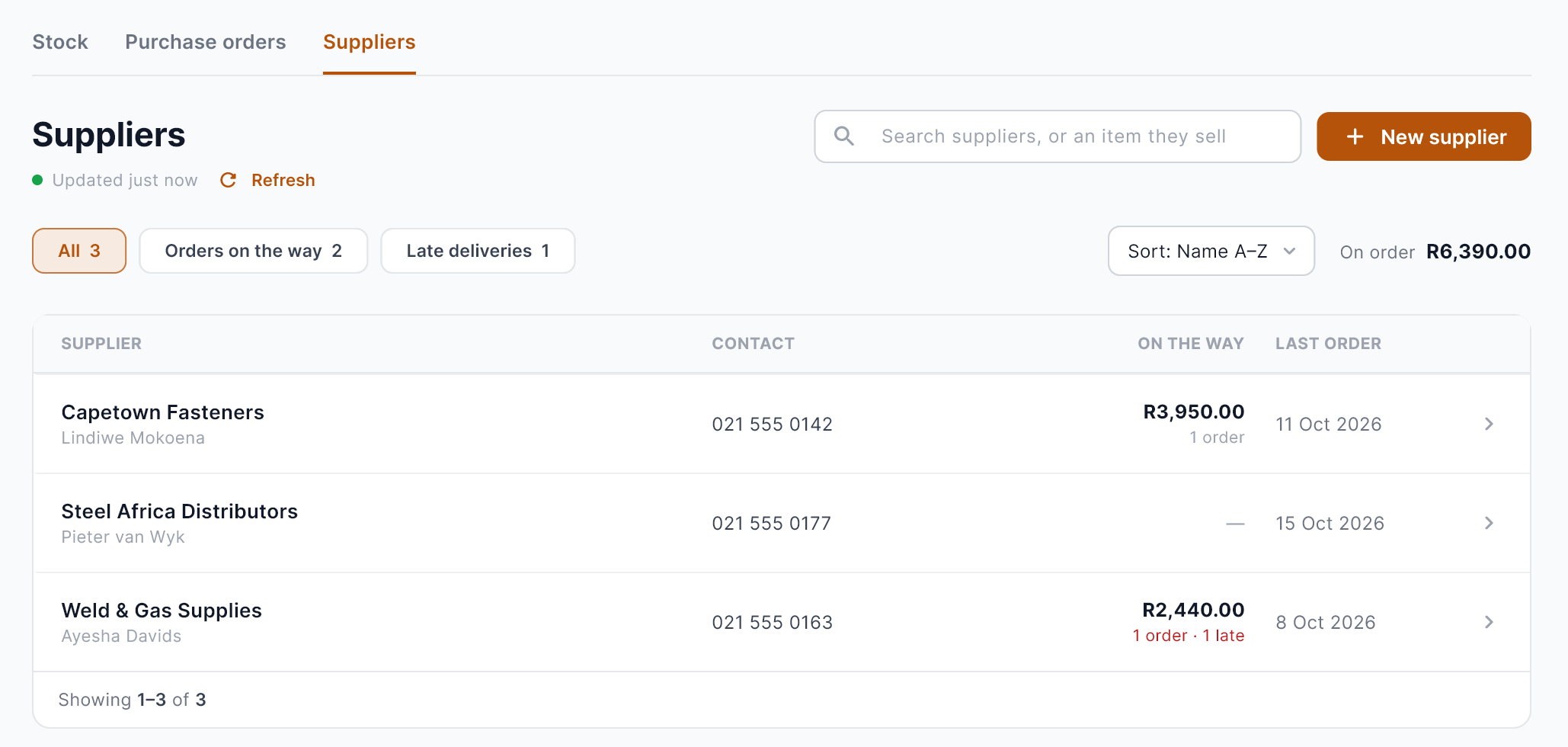
The Suppliers tab lists everyone you buy from, with their contact, what’s on the way from them and when you last ordered. Filter by Orders on the way or Late deliveries, or search for a supplier or an item they sell.
Each supplier has their own page:
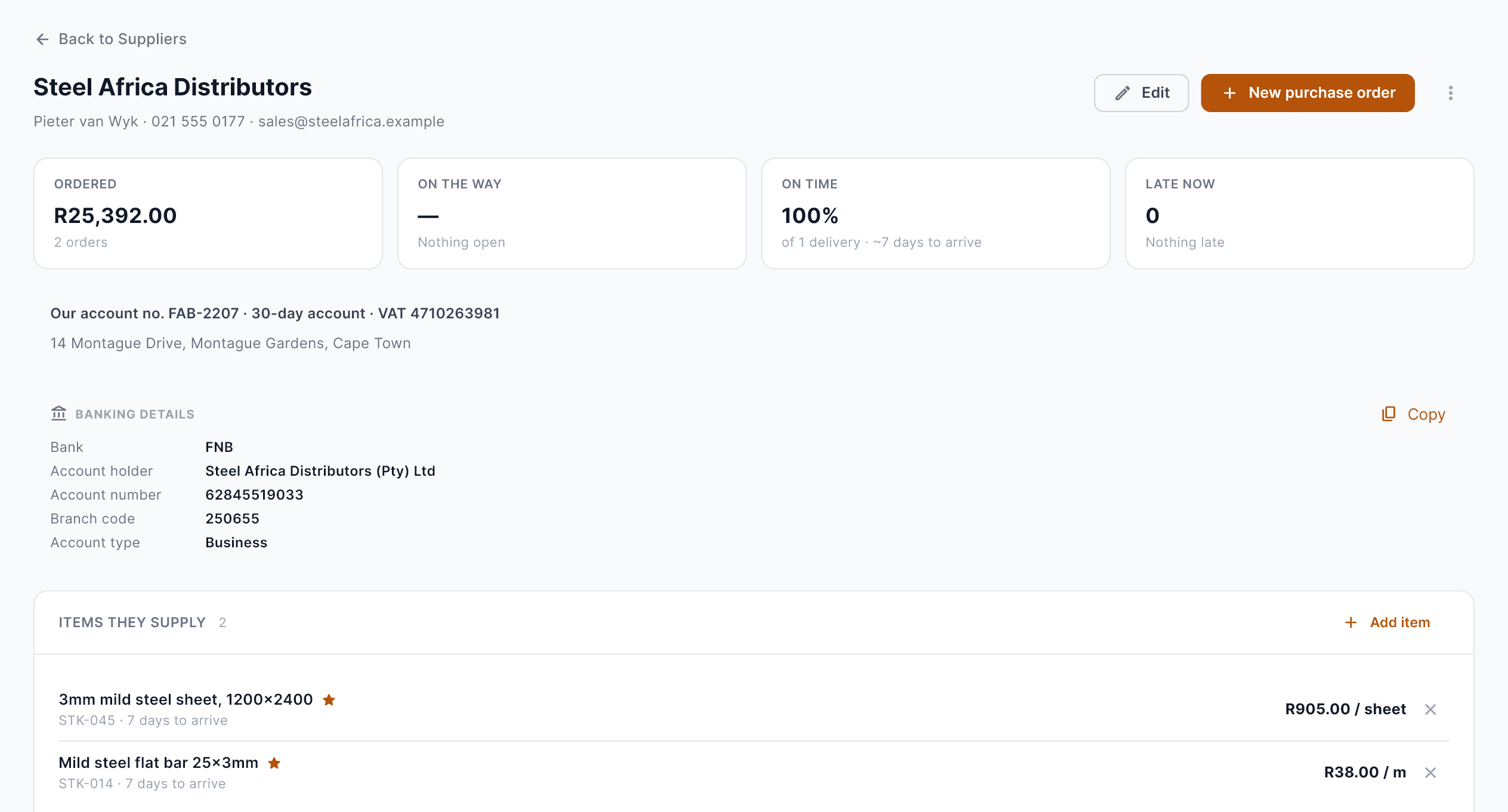
| Part | What it holds |
|---|---|
| Contact details | Contact person, phone, email, address and website. |
| Your account with them | Your account number with them (it goes on your orders), their payment terms and VAT number. |
| Banking details | Bank, account holder, account number, branch code and account type, with Copy for paying them by EFT. |
| Figures | What you’ve ordered from them, what’s on the way, how often they deliver on time and what’s late now. |
| Items they supply | Each item’s price and lead time, with your preferred supplier for it starred. The days they really take to deliver are worked out from their last deliveries. |
| Purchase orders | Every order to them. |
Every price you pay is kept, so each item shows a price history by supplier. Archive a supplier you no longer use: their history stays, but they can’t be ordered from.
Counting and correcting stock
When the shelf and the system disagree, Adjust stock corrects the count with a reason: correction, used, sold, received, returned, found, damaged or lost. Damaged, lost or expired stock can be written off with Write off, so More › Write-offs shows what it cost you.
Stock takes
Turn on daily counts in Stock settings to count a few items every day instead of everything at once, with the items worth most counted most often.
The stock ledger
More › Stock ledger lists every movement of every item: what came in from which purchase order, what went out to which job, what was written off and why, who did it, and the count after it.
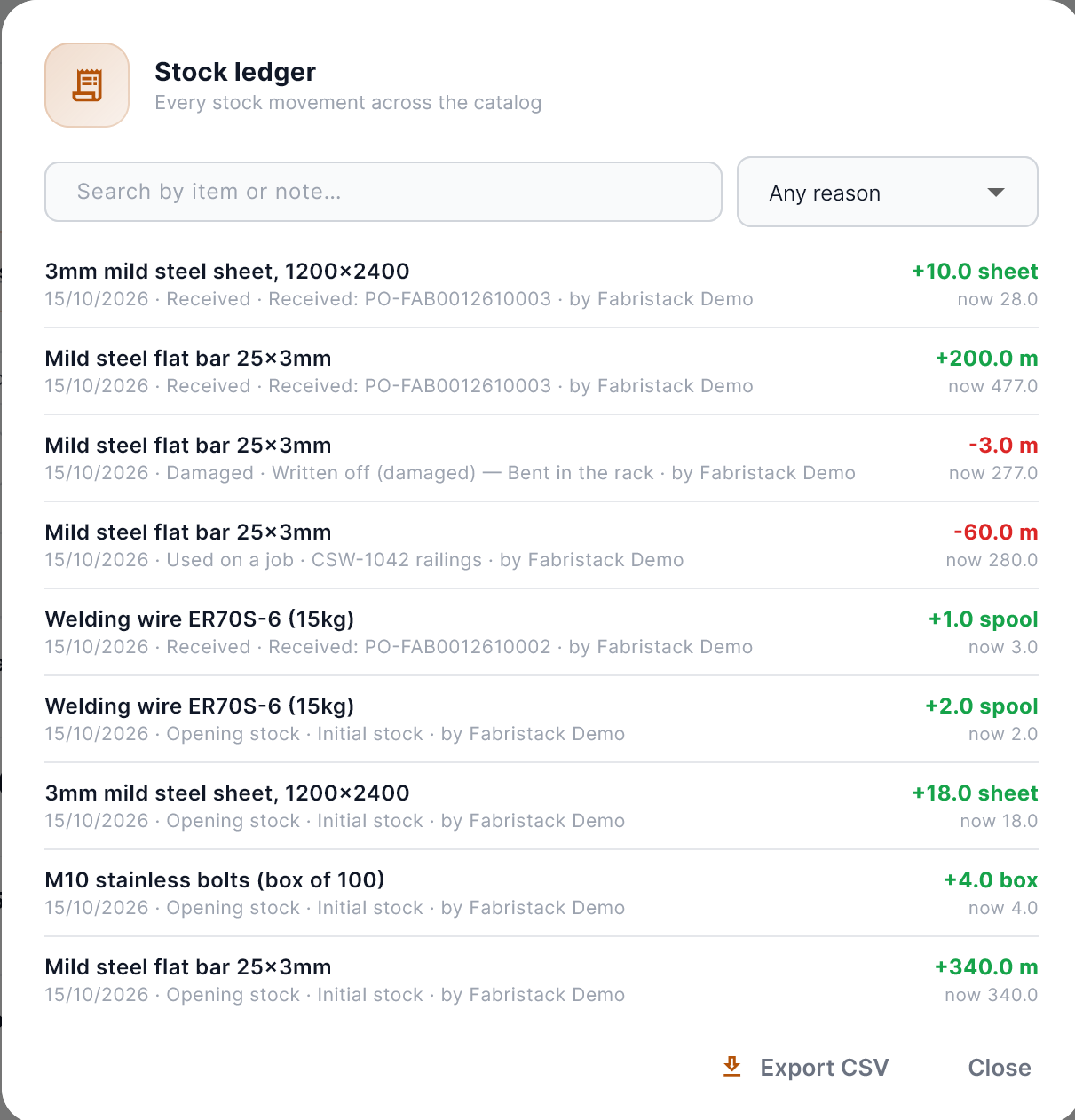
Search by item or note, filter by reason, and Export CSV for your accountant.
Batches, locations and labels
- Batches and serial numbers: record them as stock comes in, choose one as it goes out, and follow one from delivery to the jobs it went into.
- Locations: sites, stores and vans. Once you add one, each item’s stock is split across them. Move stock between them, and Restock locations from the main one.
- Holding stock: set stock aside for a customer order, so it isn’t used for something else.
- Labels: print barcode or QR labels on a label printer, or on A4 sheets of 21.
Stock value
The stock value is at the top of the Stock tab. Stock value & dead stock shows how it has changed month by month and which items haven’t been used in a long time; Stock value on a date works it out for any past date. Each has a CSV export.
Working with Order Management
With both modules, each item shows the customer orders that use it, and each work order checks its materials against your stock, after what other open work orders have set aside. It also says when a missing item is already on a purchase order. See Work orders.
Habits that make it work
- Receive deliveries the day they arrive, against their purchase order.
- Enter the supplier’s invoice when it comes, so the cost of your stock stays right.
- Run the low stock report once a week, and draft from it.
- Count one category a week instead of everything once a year.
- Fix the count the moment you notice it’s wrong, with the right reason.
- Keep a preferred supplier on every item you buy, so reordering is one step.