Order Management
Order Management takes a job from the first enquiry to the signature at handover: the sales order, work orders for production, delivery or collection, and payment. This guide covers each step.
What an order holds
A sales order holds everything about one job, so nobody has to ask three people where it stands.
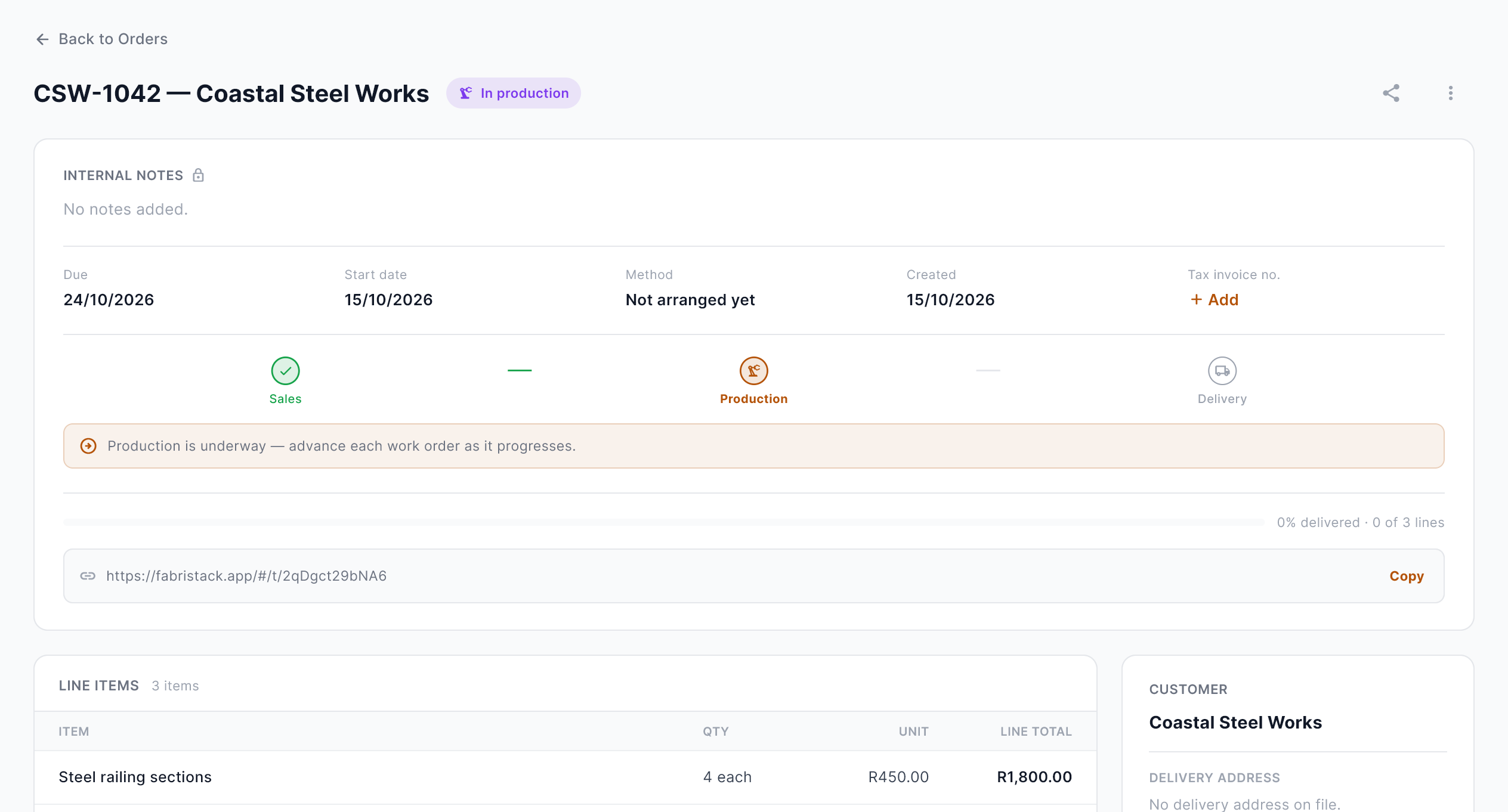
| Part | What it holds |
|---|---|
| Customer | Who the order is for, and the contact person there. |
| Customer PO number | The customer’s own order number. When there is one, it’s the order’s reference everywhere: on screens, documents and exports. Without one, the order uses Fabristack’s own number, such as #0042. |
| Line items | Description, unit, quantity, unit price and an optional discount. Lines can be linked to an inventory item. |
| VAT | Line totals are before VAT. The order total includes it. |
| Due date | The date you promised, set when you register the order. Drives the overdue and due-soon filters. |
| Stage | Where the order is, from Requested to Delivered. See Order stages. |
| Work orders | The jobs sent to production for this order. |
| Handovers | Each delivery or collection, with its signature. |
| Payment | What has been paid and what is still owed. |
| Documents | Folders for the paperwork that goes with it: quotes, drawings, photos. |
| Activity | A timeline of everything that happened on the order. |
Create an order
Duplicate order on an existing order starts a new one with the same customer and lines, for repeat work.
A customer marked Suspended can’t have new orders. Put them back to Active first. A customer On hold can, after a warning.
Order stages
Every order moves through the same stages, so “where is that job?” stops being a question you ask out loud.
| Stage | What it means |
|---|---|
| Requested | Entered, and not yet looked at. |
| Under review | Being checked: price, materials, dates. |
| Awaiting payment | Waiting on a deposit or payment before it goes ahead. |
| Registered | Confirmed. The job goes ahead. |
| In production | Registered, with work orders still open on the production floor. |
| Ready | Every work order is complete, and it’s waiting to be handed over. |
| Delivered | Everything on the order has been handed over. |
| Cancelled | Not going ahead. |
When you register an order, enter the date you have promised the customer. It shows on the order as its due date. Be realistic: an optimistic date just puts the order on the overdue list.
On a Requested order, the buttons at the top move it on: Move to review, Request payment when you want a deposit first, or Register order. Registering asks for the Promised date.
You move an order from Requested to Registered yourself. In production, Ready and Delivered follow on their own from the work orders and handovers, so they can’t be wrong.
A registered order can’t move back to an earlier stage, and its prices are fixed. A cancelled order can’t be reopened, and an order with deliveries or payments on it can’t be cancelled.
Work orders
A work order is the job card for production. Create one from a registered order, choosing which line items it covers and how many of each. A big order can be split across several work orders.
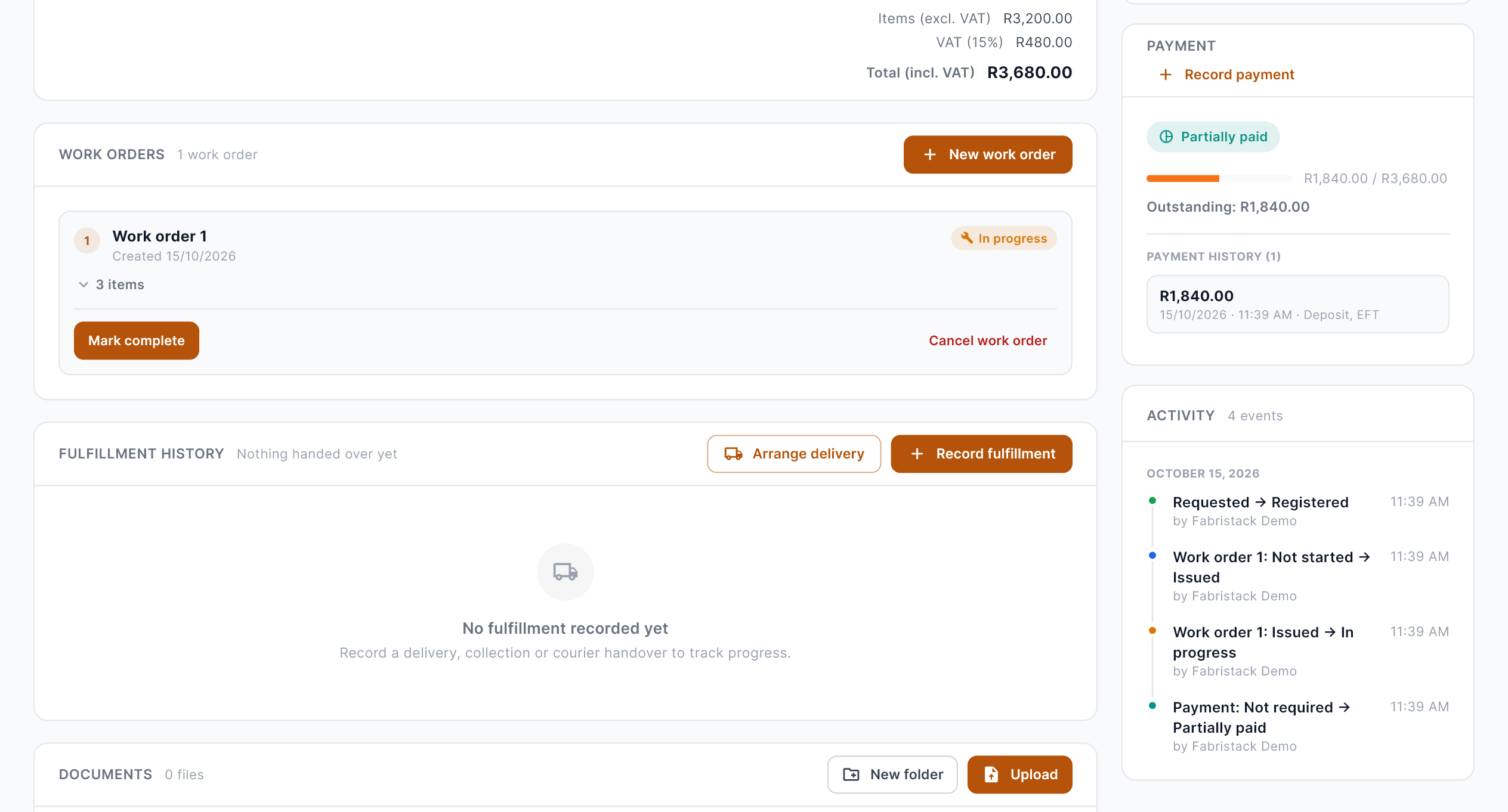
| Status | What it means |
|---|---|
| Not started | Created, not yet sent to the floor. |
| Issued | Handed to production, with its materials. |
| In progress | Being made. |
| Complete | Done. |
| Cancelled | No longer needed. |
Materials
With Inventory Controller, each work order gets a materials checklist worked out from its line items. A stock check at the top shows anything the shelves can’t cover, after what other open work orders have already promised, and says when it’s already on a purchase order so nobody orders it twice. Materials are ticked off as they are issued.
Finding what needs attention
Across the top of the order list: Open, Overdue, Ready for delivery and what was ordered this month. Tap Overdue or Ready for delivery to see just those orders. Filter by stage, by due date (Overdue, Due this week, Due this month) or by payment, such as Owing: everything still waiting on some or all of its money. Start each morning with overdue, then what’s ready to go out.
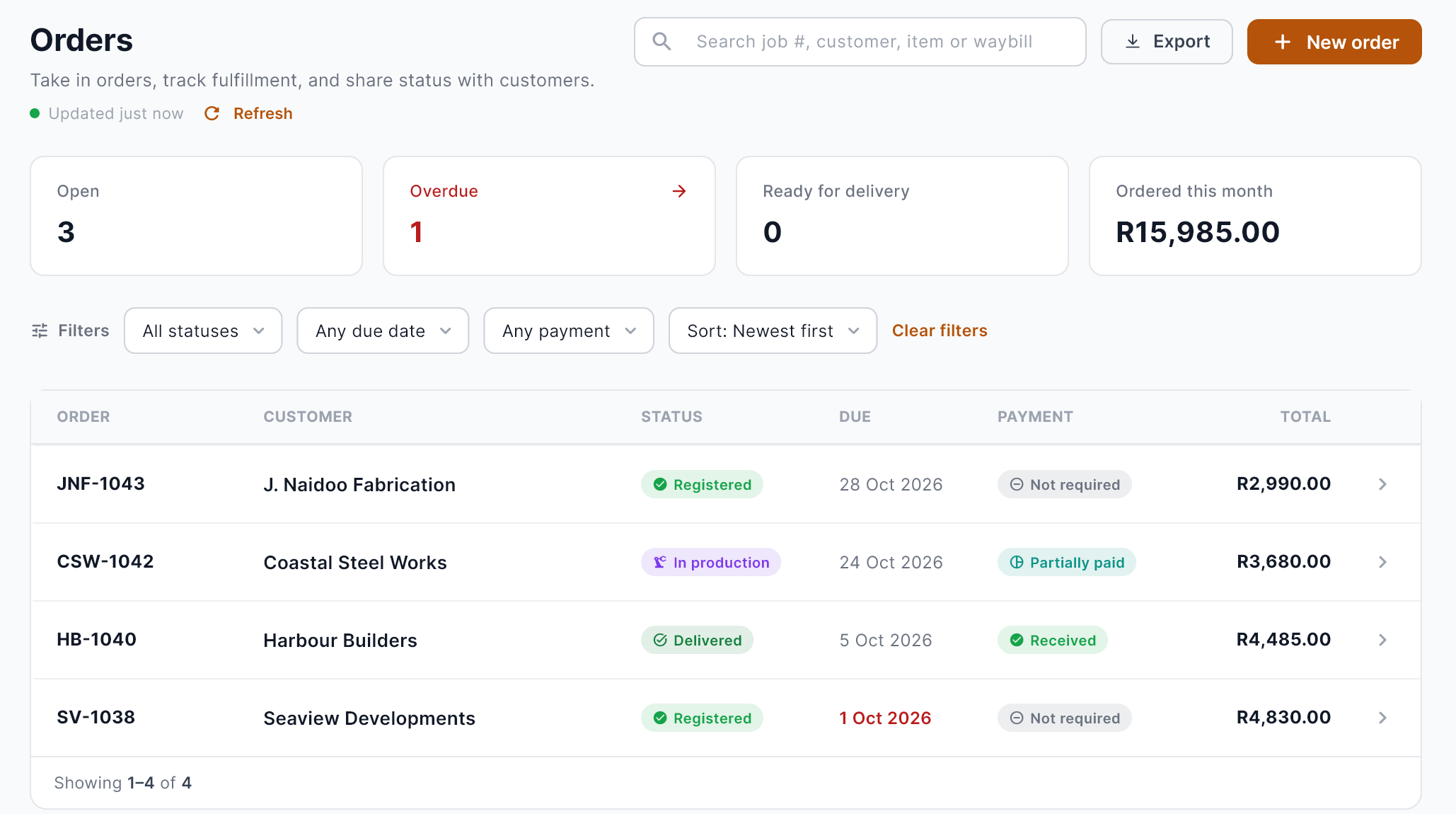
Search by order number, customer, item or waybill. Drivers see only the orders assigned to them for delivery, and what they delivered today.
Delivery, collection and courier
Every order is handed over one of four ways:
| Method | What happens |
|---|---|
| Delivery | Your own driver delivers it. |
| Collection | The customer collects it from you. |
| Sent by courier | You book a courier to deliver it. |
| Collected by courier | The customer’s courier collects it from you. |
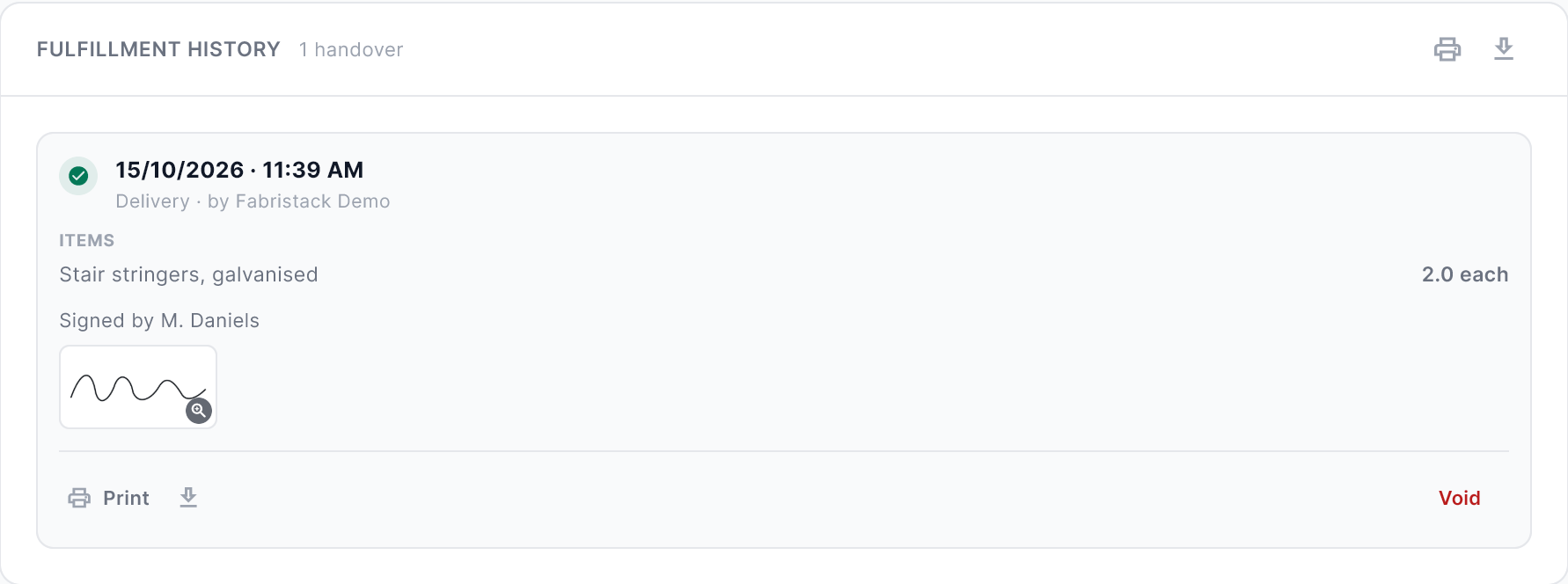
When everything has been handed over, the order moves to Delivered on its own. A handover recorded by mistake can be voided; it stays in the history, marked Voided.
Customer tracking
Every order has its own tracking link: a page your customer can open without signing in, showing the order’s progress. Nothing on it can be changed.
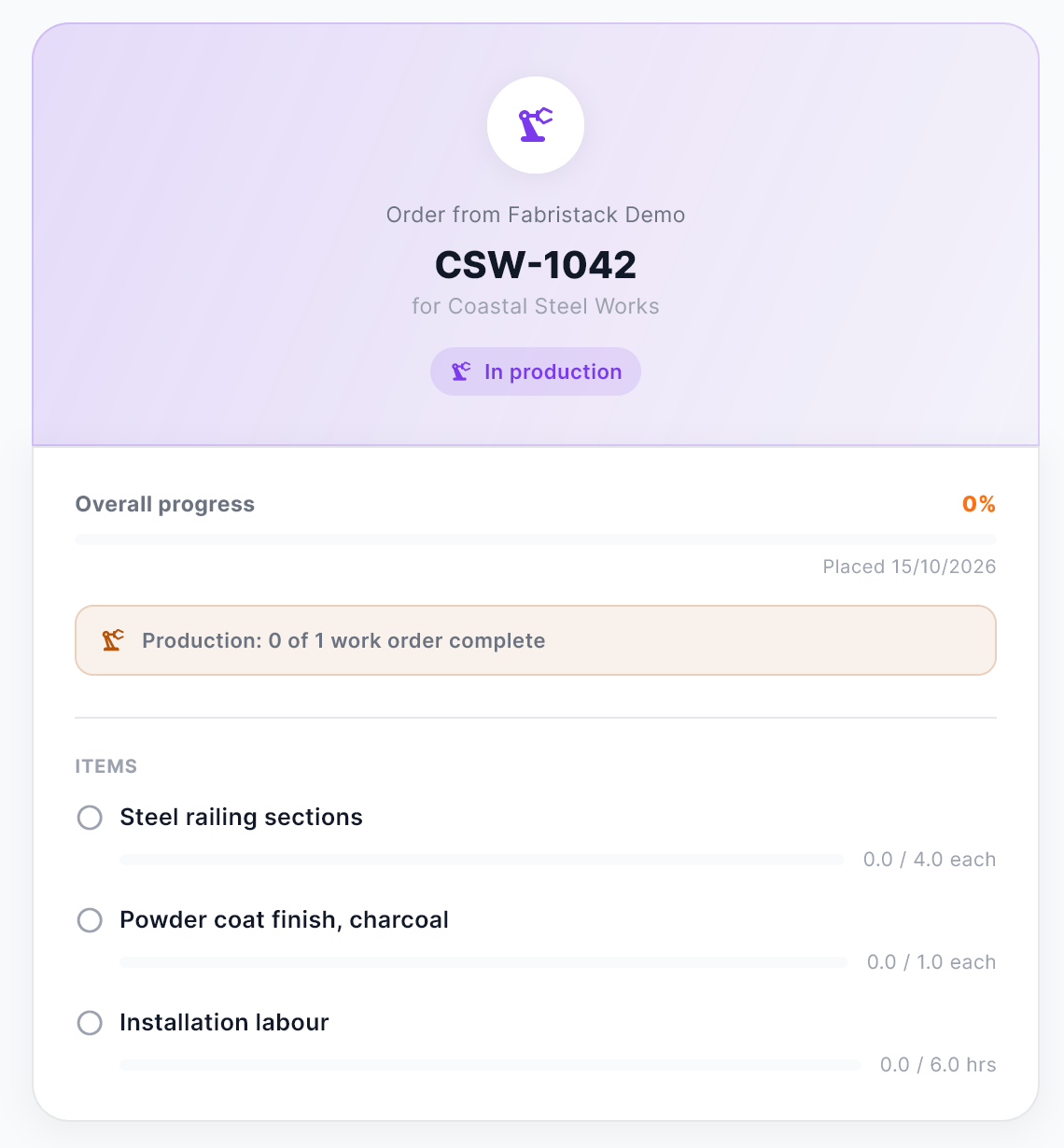
Email tracking link sends the customer a tracking email from the order. It shows the items, the total and where the order stands, with the link. Copy tracking link to paste it into WhatsApp or your own email.
Payment
Payment is tracked separately from the stage, so an order can be registered before it is paid.
| Payment status | What it means |
|---|---|
| Not required | No payment is expected on this order yet. |
| Requested | You have asked for payment. |
| Partially paid | Some has been paid, and the rest is owed. |
| Received | The total is covered. |
Record each payment on the order as it arrives. Partially paid and Received follow from the payments and the order total, and are worked out again if either changes, so an order can’t show paid while money is still owed.
Record payment takes the amount and a note, such as the EFT reference. It can’t be more than what’s outstanding. A payment entered by mistake can be voided.
Tax invoice no. keeps the number of the invoice from your accounting software on the order, so the two can be matched. Fabristack doesn’t make or check tax invoices.
Only roles that deal with money see prices and payments. Drivers, for example, see what to deliver, not what it cost.
Customers
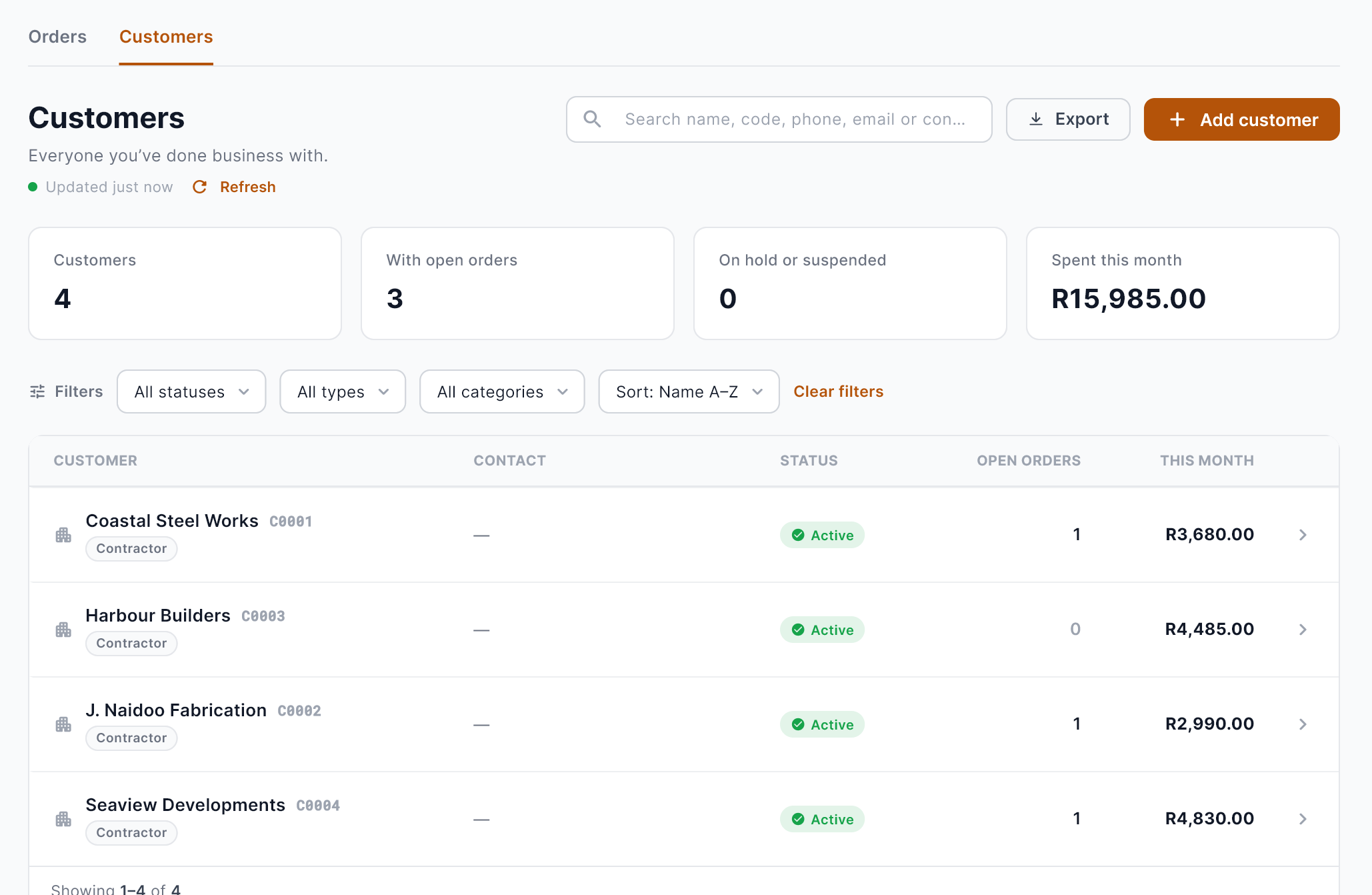
The Customers tab on Orders lists everyone you’ve done business with: their code, category, status, open orders and what they’ve spent this month. Filter by status, type or category, and Export the list.
Each customer has its own page with their details, the people you deal with there, their orders and their documents. Across the top: total spent, spent this month, orders and open orders.
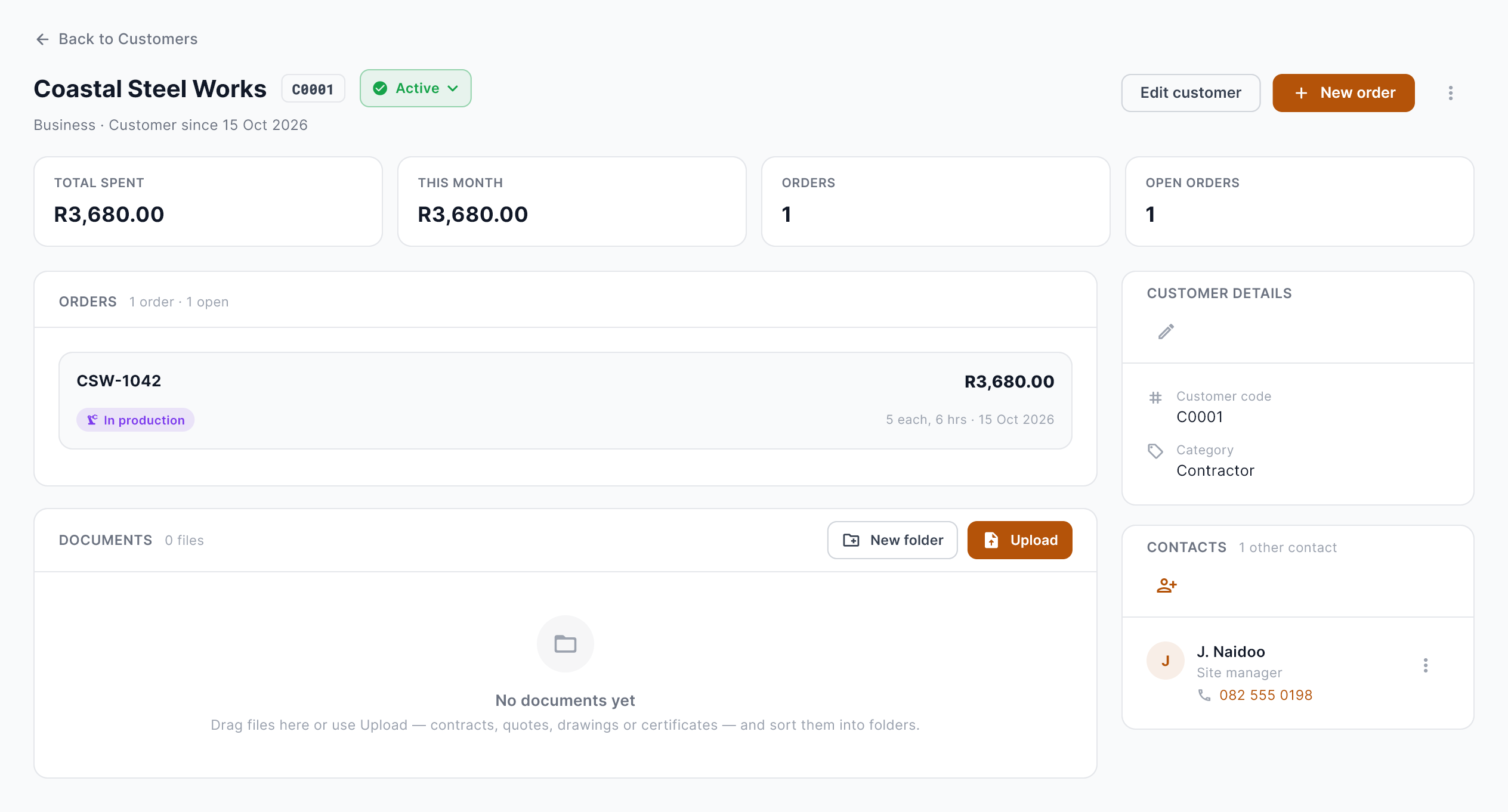
- Business or individual, with a customer code and a category.
- Contacts: as many people as you deal with, so the right one is on each order.
- Status: Active, On hold or Suspended. Suspended customers can’t have new orders.
- Documents: folders for contracts, quotes, drawings and photos.
- Merge duplicates into one customer, and archive customers you no longer deal with.
Activity and history
Every order keeps a log of what happened and who did it: stage changes, work orders, handovers and payments, with the time. Download full history or Print full history for a PDF of it.
Exporting orders
Export the order list as CSV, Excel or PDF, for your bookkeeper or your own records.
A worked example
Oct 02: order entered for Coastal Steel Works: four railing sections, R3,680 including VAT. Requested.
Oct 03: price confirmed. Registered, due Oct 24. Tracking email sent to the customer.
Oct 05: work order issued to production. The order shows In production.
Oct 20: work order complete. The order shows Ready.
Oct 24: delivered and signed for by J. Naidoo at 10:42. The balance is recorded when it clears, and payment shows Received.
Habits that make it work
- Enter the order when the enquiry comes in, not when work starts.
- Send work to production as work orders, so the stage looks after itself.
- Put the real due date on it. Fix the date rather than ignoring the flag.
- Always capture the signature, even for regular customers.
- Record payments the day they arrive.